
Importing Grades from Google Classroom (Austin ISD)
Pre-requisite 1: You must create assignments in Frontline SIS that match your assignment names in Google Classroom. They should also have the same grade scale value (5 points, 10 points, 100 points, etc) otherwise grades could be imported as 5/100 instead of 5/5.
Pre-requisite 2: Student ID Setup for Austin ISD
Teachertools relies on the Student ID number to correct match students in Google Classroom to Frontline SIS. Google Classroom does not include Student ID numbers so you need to perform a one-time setup to add student ID numbers to Google Classroom.
Create a New Assignment in Google Classroom called “Student ID” with a grade value of “99999999”
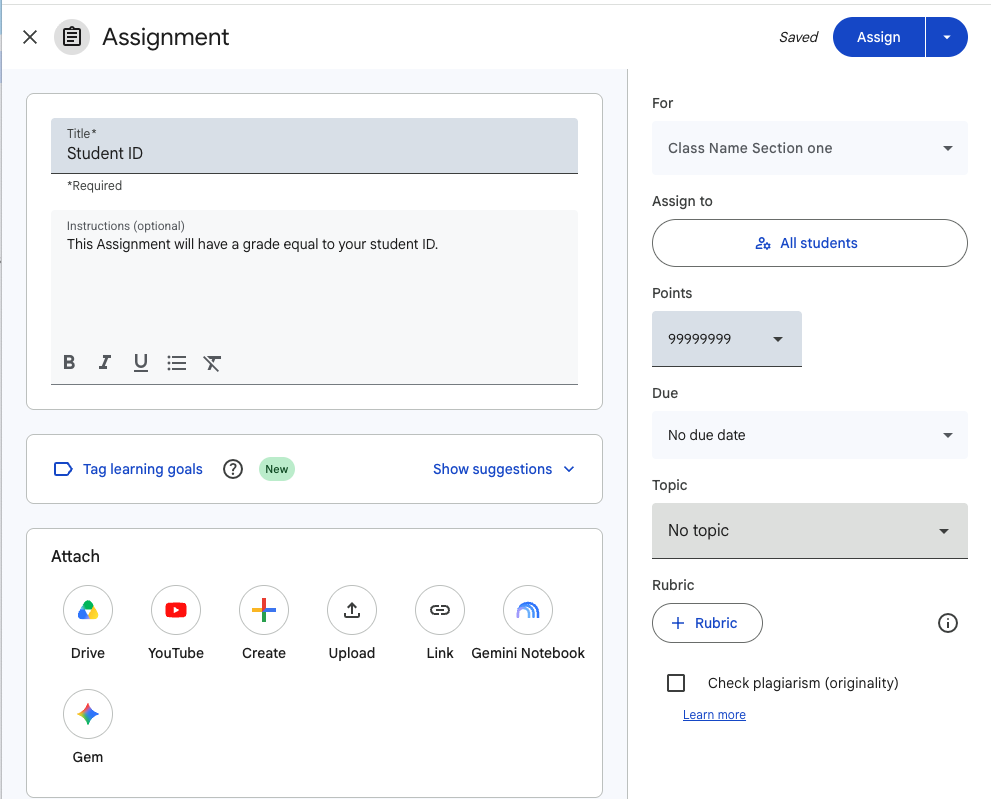
Grade the assignment, and manually type in the associated Student IDs as the grade value for the assignment. This only needs to be done once per student for the full year.
Note: You will not be able to see the Student ID value as you type it because it is longer than what Google Classroom typically expects for grade values. You will be able to see and confirm the Student ID when you click outside of the grade entry box.
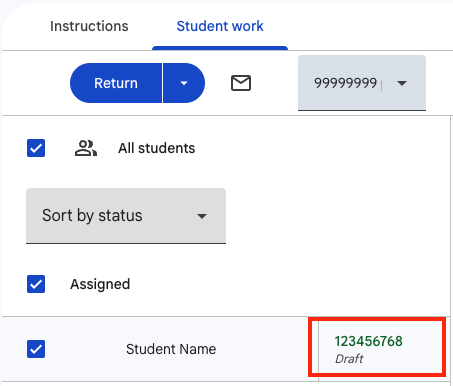
Save these values by returning the assignment.
Once this initial Student ID setup is complete you can move on to importing grades:
A video tutorial is available to the right, or see the written tutorial below for more a more thorough explanation.
Step 1: Export your gradebook from Google Classroom. Choose to export grades for all assignments.
From Google Classroom, select your class and then go to the Grades tab.

Click on an Assignment Name to view the Student work tab.
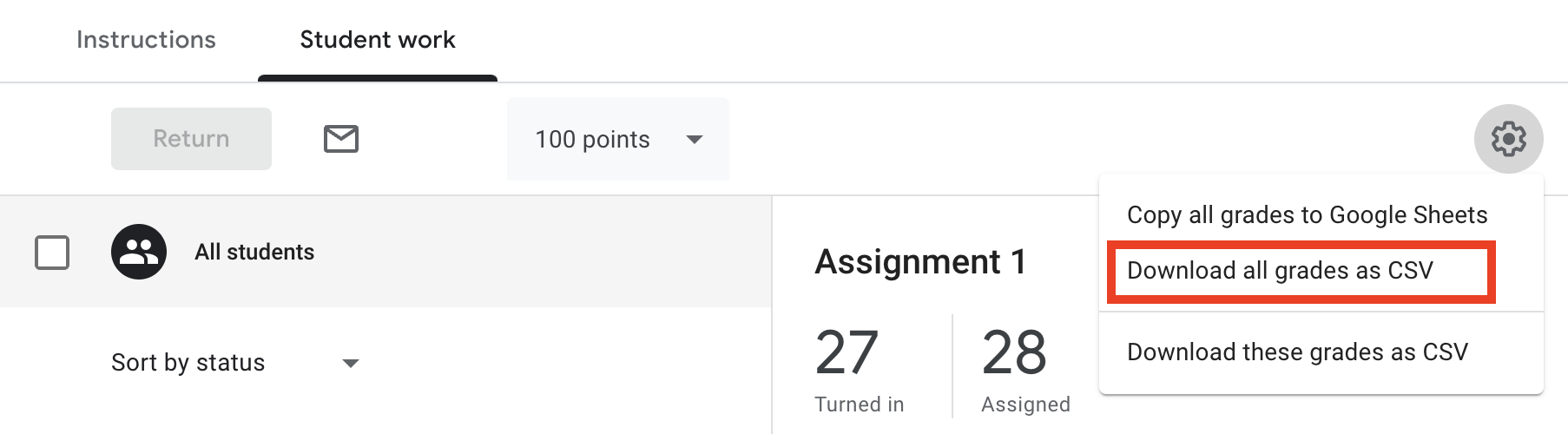
From the Student work tab select the Gear on the right and choose Download all grades as CSV or Download these grades as CSV. ‘Download these grades’ is not compatible with Austin ISD. Select Download all grades as CSV to download a full list of all assignments.
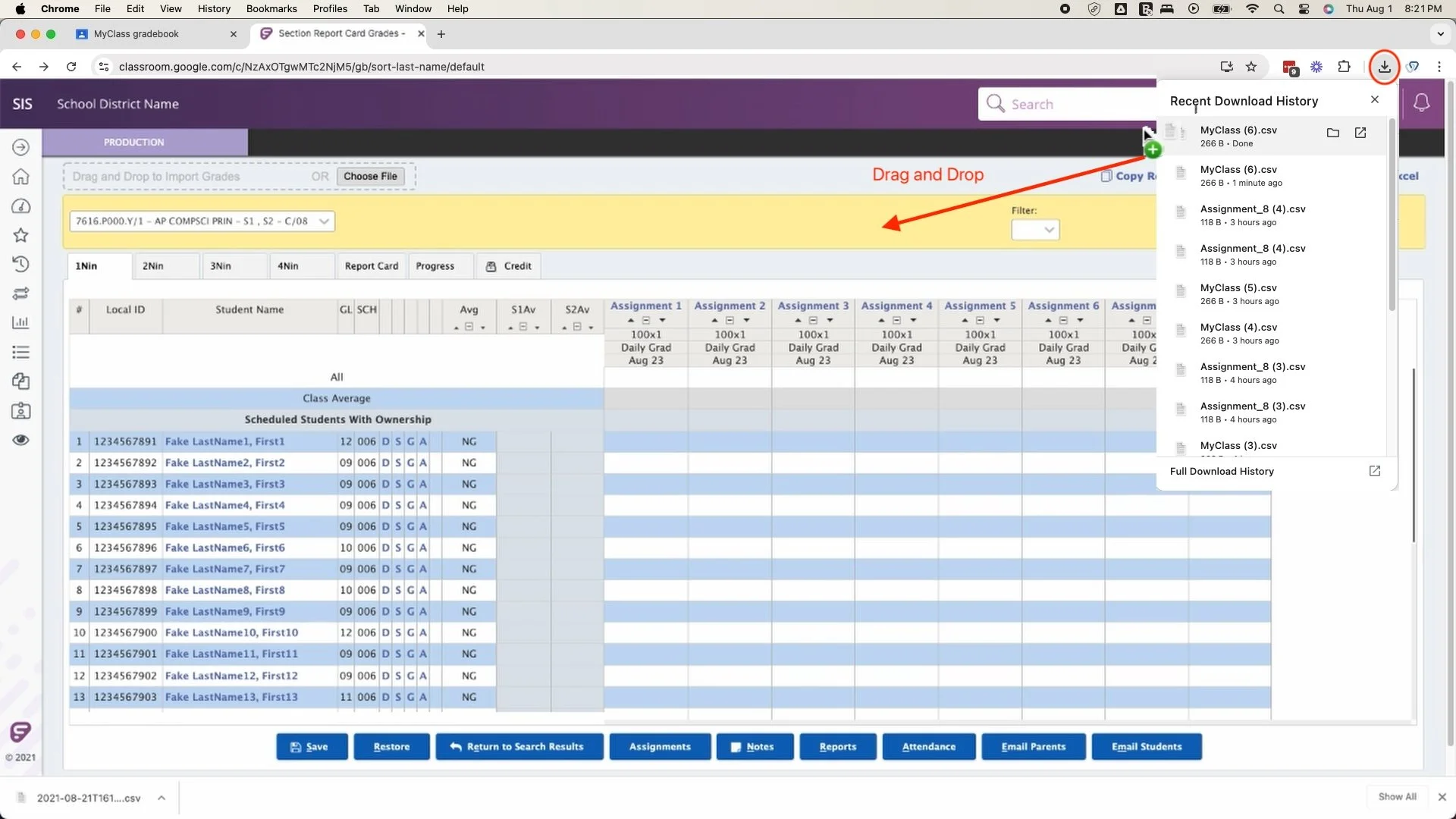
Step 2: Drag the file from the downloads history into Frontline SIS
Click and drag the file from the downloads history into a blank area on the Frontline SIS gradebook. Let go of the mouse and the file will automatically be detected.
Tip: Have Frontline SIS open in a separate tab within the same Chrome window.
Alternatively, click “Choose File” and select the file on your computer
Step 3: Choose assignments to import
Teachertools will inform you if assignments were found in the file that were not in Frontline SIS.
Blank cells will be ignored by default so as to not overwrite any manually updated grades in Frontline SIS. Uncheck this box if you want blank grades in the file to overwrite existing grades in Frontline SIS.
Emojis in assignment names will be ignored. Learn more

Step 4: Watch and verify
The progress bar will update showing the current progress of the import.
Verify grades transferred correctly.

Step 5: Save
Save your updated grades and repeat for your other sections in Frontline SIS.

Important Note:
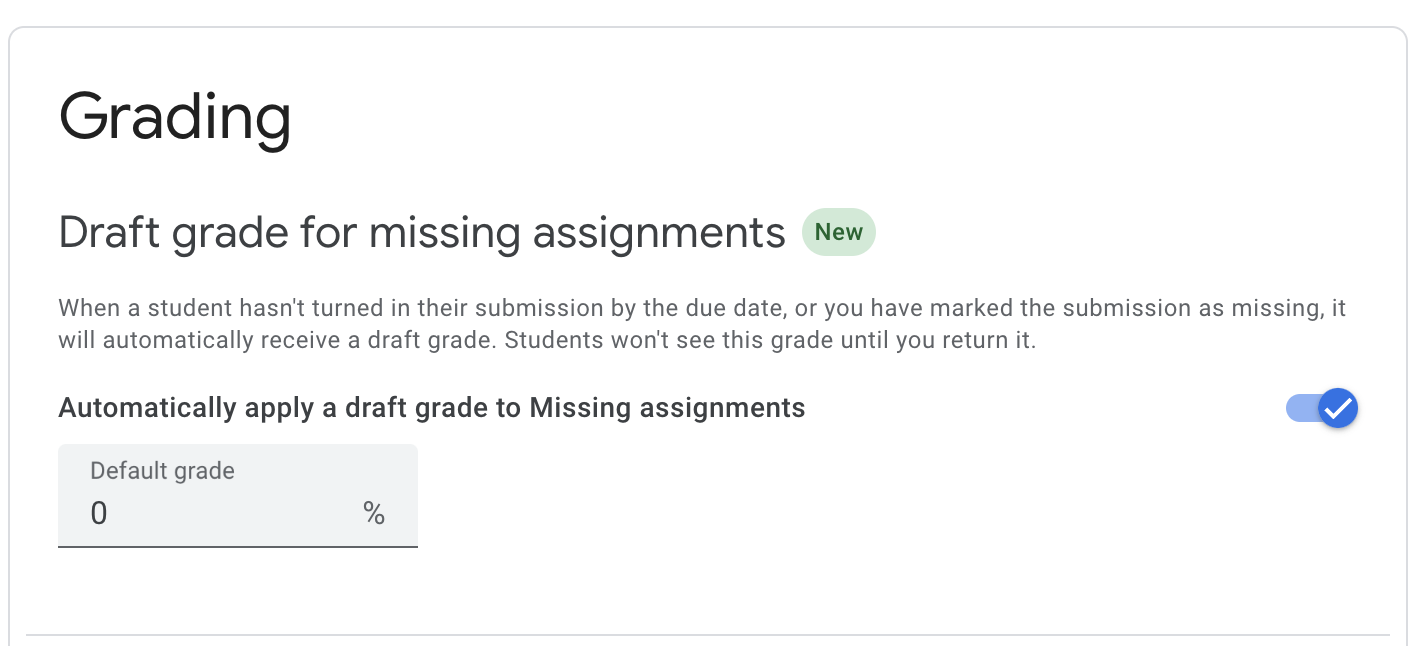
Google Classroom added a new feature which automatically assigns a grade of 0 to all past-due submissions. Even if you mark these assignments as ‘excused’ in Google Classroom, they will be still exported as a 0 and Teachertools will assume this is the correct grade.
To mitigate this, you can disable this new feature by going to your Google Class Settings (by clicking the gear in the top right of your class view) and disable the Draft grade feature:
Technical Details
The Google Classroom All Grades Export File
When you choose to “Download all grades as CSV” you will see a file like this:
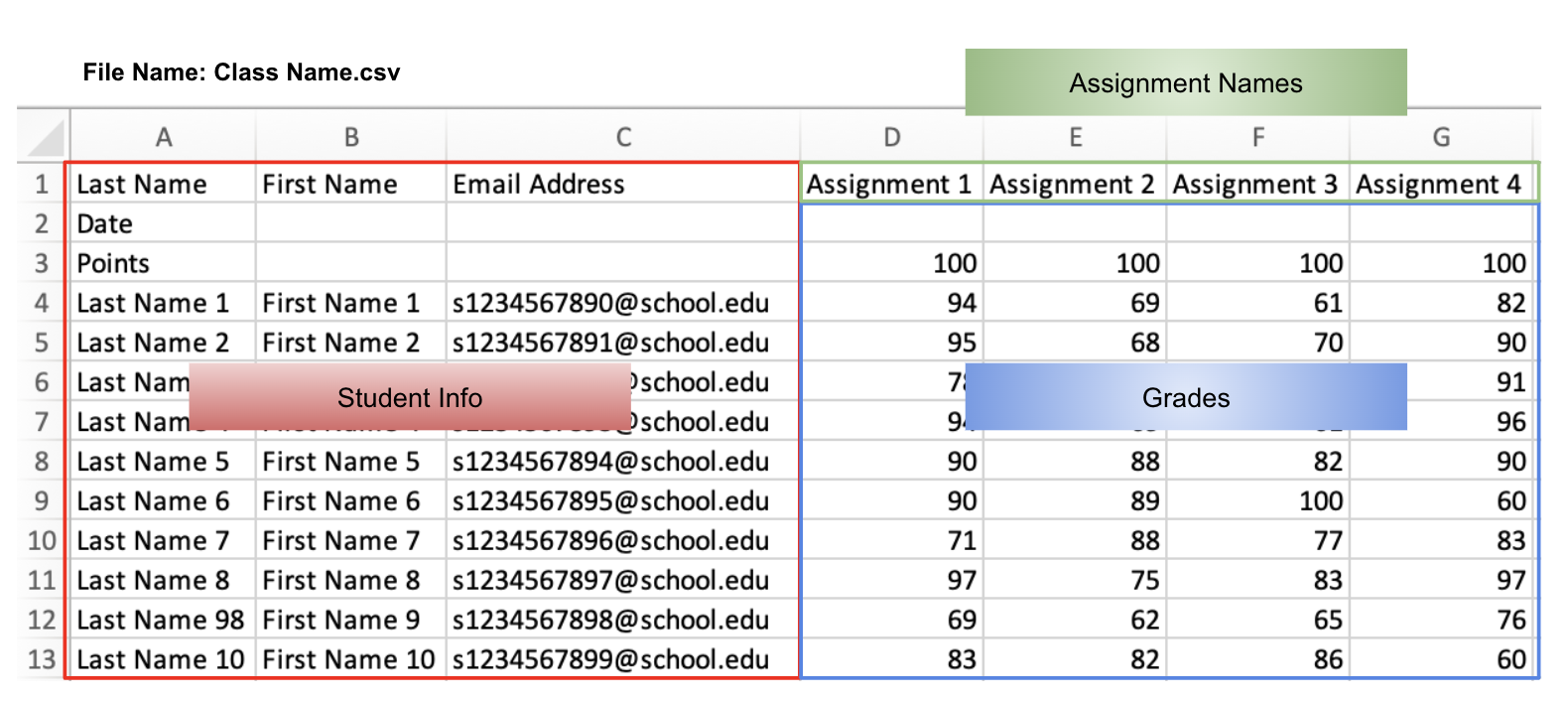
The Google Classroom All Grades export file is named based on the Google Classroom Class name. The file has two main sections:
Student Information
Teacher tools uses Columns A-C headers to detect a Google Classroom All Grades export file. The headers must match:
Last Name
First Name
Email Address
Teachertools uses the Email Address column to match with the Frontline SIS Local ID for certain districts. However, Austin ISD does not use student ID as the student email address. Therefore a separate Assignment must be created named “Student ID” with the Student ID as the grade value.
Grades
Columns D and onward hold the Assignment and Grades information
Assignment names are in Row 1
Grade values are passed directly into Frontline SIS